User guide: CarPlay & Android Auto Adapter Z18S1
Step-by-step setup. Stuck? Message us on WhatsApp and we help you.
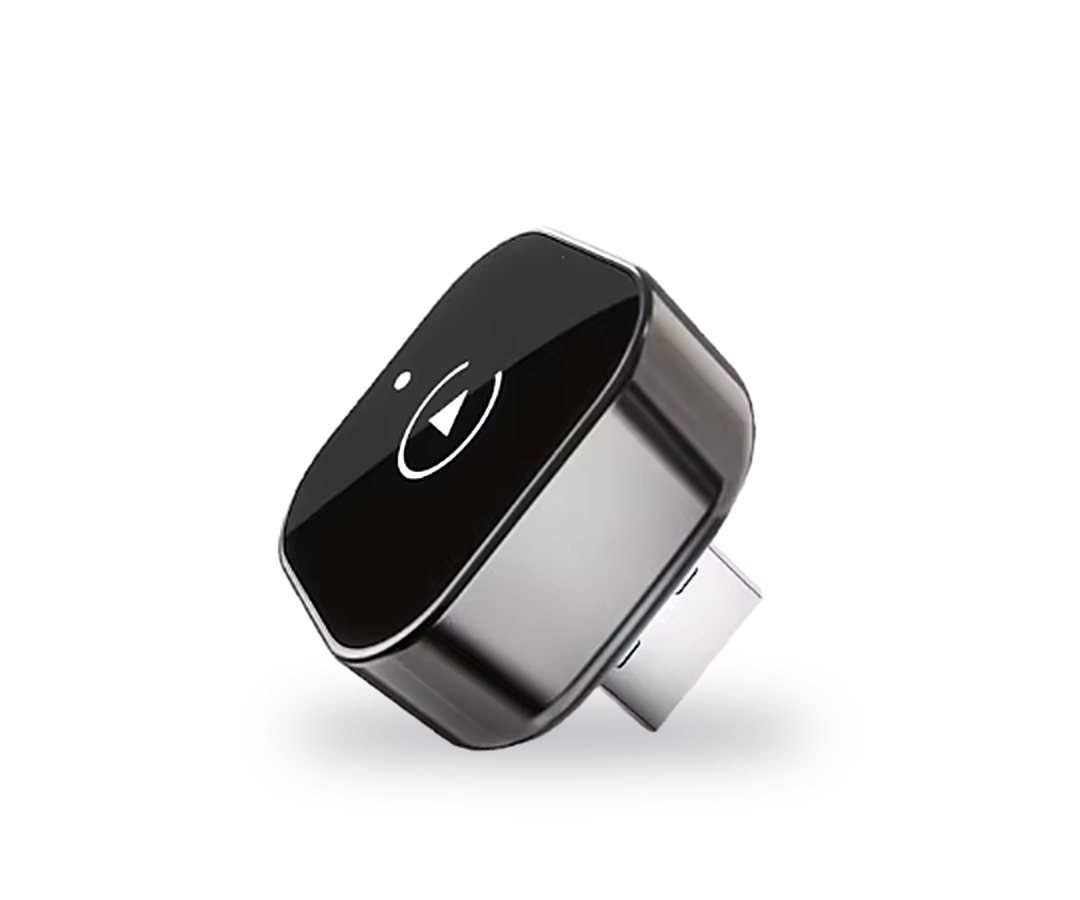
User guide
Wireless CarPlay & Android Auto Adapter
Turns your car's wired CarPlay or Android Auto into wireless.
Before you start
Will it work in my car?
Your car must already support CarPlay or Android Auto with a USB cable. The adapter makes that connection wireless; it does not add CarPlay or Android Auto to a car that doesn't have it.
- iPhone: iPhone 6 or newer, with iOS 10 or later.
- Android: Android 11 or later, with the latest Android Auto.
Quick check
- 1
Plug your phone into the car's USB port with a cable. If the CarPlay or Android Auto logo appears on the car screen, the adapter will work.
- 2
Not sure? Look up your car on apple.com/ios/carplay/available-models or android.com/auto, or send us your car's make, model and year on WhatsApp.
In the box
- Wireless adapter (USB-A plug)
- USB-A to USB-C adapter, for cars with a USB-C port
Specifications
- Works with
- CarPlay · Android Auto
- Bluetooth
- 5.0
- Wi-Fi
- 2.4 GHz and 5 GHz
- Plug
- USB-A (USB-C with the included adapter)
- Size
- 23.7 × 10.2 mm
Three rules first
Most connection problems come from skipping one of these.
- 1
Remove the car's own Bluetooth from your phone's list of paired devices. Otherwise the phone may connect to the car instead of the adapter.
- 2
Keep Wi-Fi switched on. After pairing, the adapter connects over Wi-Fi by itself; you only join its network by hand to update it (page 7).
- 3
Pair Bluetooth only between your phone and the adapter. Never pair the adapter with the car's Bluetooth.
Apple CarPlay
Connect an iPhone
- 1
Start the car and wait for the car's system to finish loading.
- 2
Plug the adapter into the car's USB port (USB-A, or USB-C with the included adapter).
- 3
The car screen shows the adapter's Bluetooth name: smartBox-XXXX.
- 4
On the phone, open Settings and turn on Bluetooth and Wi-Fi.
- 5
In Bluetooth, tap smartBox-XXXX under Other Devices.
- 6
A Bluetooth Pairing Request appears. Tap Pair.
- 7
After about 20 to 30 seconds the iPhone asks to “Use CarPlay with smartBox-XXXX”. Tap Use CarPlay.
- 8
The car screen switches to CarPlay. From then on it connects by itself.
Use CarPlay with
“smartBox-XXXX”
Android Auto
Connect an Android phone
- 1
Start the car and wait for the car's system to finish loading.
- 2
Plug the adapter into the car's USB port (USB-A, or USB-C with the included adapter).
- 3
The car screen shows the adapter's Bluetooth name: smartBox-XXXX.
- 4
On the phone, open Settings and turn on Bluetooth and Wi-Fi.
- 5
In Bluetooth, tap Pair new device and choose smartBox-XXXX.
- 6
A pairing request appears. Tap Pair.
- 7
Once pairing is done, the car screen switches to Android Auto.
Pair with
smartBox-XXXX?
Switching phones
- 1
On the phone that is connected now, turn off Bluetooth, then Wi-Fi.
- 2
Unplug the adapter and plug it back in. Don’t skip this step.
- 3
On the other phone, turn on Bluetooth and pair with smartBox-XXXX.
- 4
If the phone says the device is busy, try pairing a few more times until it takes over.
What the light means
Software update
You don't need to update to use the adapter. Update only if the connection is unstable, or if we advise you to.
iPhone
- 1
Plug in the adapter so it is powered.
- 2
Join the adapter's Wi-Fi network, smartBox-XXXX. Password: 88888888.
- 3
Open a browser, go to 192.168.5.1 and tap History version to update.
Android
- 1
Plug in the adapter so it is powered.
- 2
Join the adapter's Wi-Fi network, smartBox-XXXX. Password: 88888888.
- 3
Open a browser, go to 192.168.5.1 and tap Switch P2P Mode.
- 4
Back in Wi-Fi settings, open Wi-Fi Direct and connect to smartBox-XXXX.
- 5
Return to the browser page and tap History version to update.
Don't unplug the adapter while it is updating.
If it doesn't connect
- First check that the car connects to your phone with a USB cable (page 2).
- Remove the car's Bluetooth from your phone, then unplug and replug the adapter.
- In the phone’s Bluetooth settings, forget smartBox-XXXX and pair again.
- Still stuck? Message us on WhatsApp with your car and phone model.
Help from Bass Power
Bought it from us? We help you set it up, in the shop or on WhatsApp.
- WhatsApp+961 81 571 320
- VisitBass Power — Street Nahr, Bourj Hammoud, Metn, Lebanon
- HoursMonday to Saturday, from 8:00 to 18:00
- Emailinfo@basspoweraudio.com
- Websitebasspoweraudio.com
Covered by Bass Power for 3 days after delivery: if it doesn't power on or arrives damaged, we replace it (no refund). In-store purchases are checked before sale, so this window doesn't apply to them. No coverage after 3 days.
CarPlay and iPhone are trademarks of Apple Inc. Android Auto and Android are trademarks of Google LLC.