User guide: 1080P Rear Camera, 170° Night Vision
Step-by-step setup. Stuck? Message us on WhatsApp and we help you.
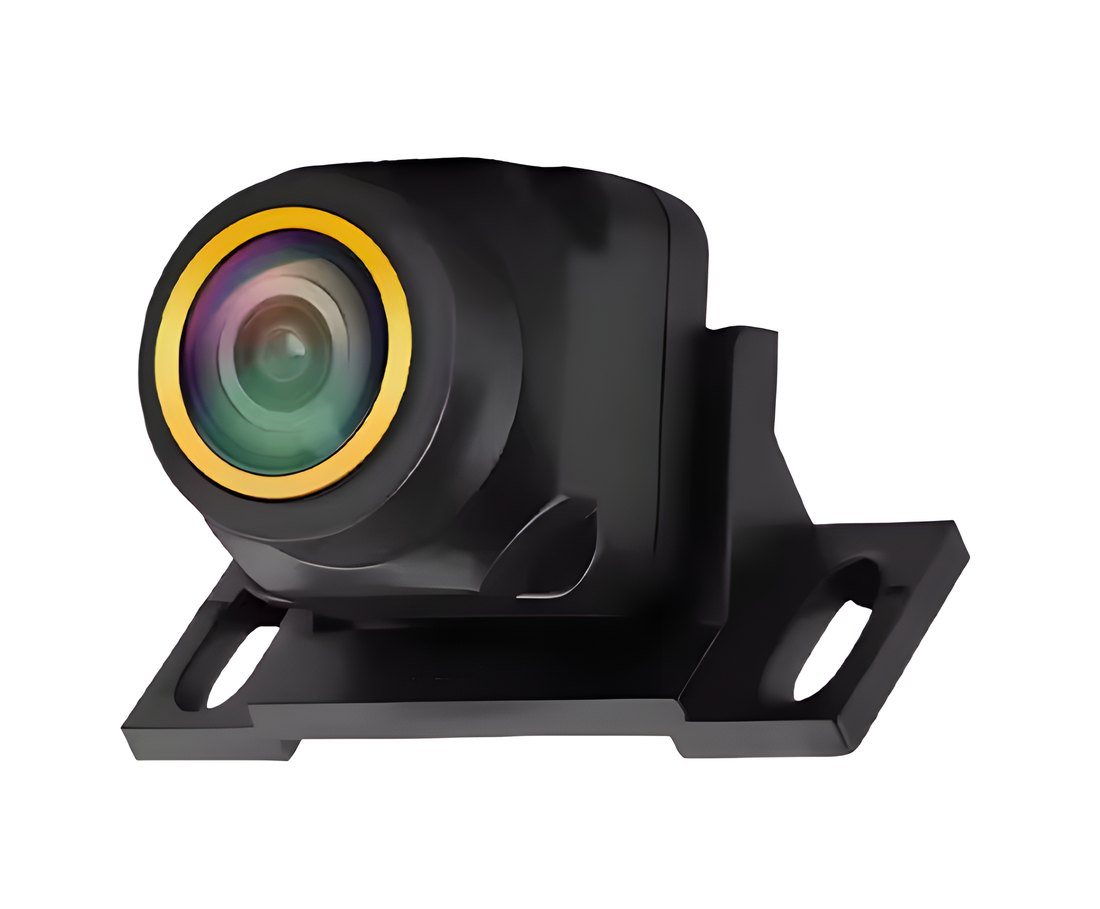
User guide
1080P Rear Camera
170° wide angle, night vision and parking guide lines. Comes on by itself when you reverse.
Before you start
Which mode does your screen need?
The camera has two video modes. AHD gives the full 1080P picture but only works on screens that support AHD. CVBS works on almost every screen. As it comes, the camera is in AHD mode.
| Your screen | CVBS | AHD |
|---|---|---|
| Android radio from Bass Power | ||
| Other Android screens | if listed | |
| AHD monitors | ||
| Older screens, mirror monitors, DVD units |
In the box
- Camera with mounting bracket
- 6 m video cable (RCA)
- Power lead
Specifications
- Picture
- 1080P AHD · CVBS
- Viewing angle
- 170°
- Waterproof
- IP68
- Power
- 12 V · 0.1 A
- Video out
- AV (RCA)
- Video cable
- 6 m
Installation
Easiest: we fit it at the shop, together with your radio. If you fit it yourself, follow these steps.
- 1
Mount the camera at the back of the car, above the number plate or on the bumper, and run the video cable to the front.
- 2
Camera power: red wire to the reverse light's positive wire, black wire to ground (the car's metal body).
- 3
Plug the video cable into the screen's camera input.
- 4
Connect the radio's reverse wire (often labelled BACK or REVERSE) to the reverse light's positive wire too, so the screen switches to the camera.
- 5
Before closing the panels, start the car, put it in reverse and check the picture.
Three wires, three settings
Three thin wires come out of the camera cable. Each one changes one setting when you cut it.
| Wire | As it comes | After cutting |
|---|---|---|
| Orange | AHD video | CVBS video |
| White | Mirror view, for a rear camera | Normal view, for a front camera |
| Green | Parking lines on | Parking lines off |
Cutting a wire
- 1
Turn the car off first.
- 2
Cut only the wire you need, then cover each cut end with insulating tape.
A cut can't be undone. Not sure? Ask us first.
Set up your screen
The screen and the camera must use the same mode. On our Android radios:
- 1
Open Settings, then Car settings, then Factory settings.
- 2
Open Reverse (picture) settings, called BackCar Setting on some radios.
- 3
AHD mode (as it comes): choose AHD-1080P-25HZ.
- 4
CVBS mode (orange wire cut): choose CVBS-NTSC.
If the radio asks for a password, message us on WhatsApp.
If something is wrong
"No signal" or a black screen
The screen and the camera are on different modes, or the camera has no power. Check the screen setting (page 4), and that the red wire is on the reverse light.
Black-and-white picture
Wrong video standard: choose CVBS-NTSC in CVBS mode, AHD-1080P-25HZ in AHD mode. If it stays, check the video cable.
Flicker or stripes when the engine starts
Some cars, often German and American ones, send an unsteady voltage to the reverse light. A small power filter (rectifier relay) fixes it; we can fit one.
Picture flipped, or lines you don’t want
Use the white and green wires (page 4).
Help from Bass Power
Bought it from us? We help you set it up, in the shop or on WhatsApp.
- WhatsApp+961 81 571 320
- VisitBass Power — Street Nahr, Bourj Hammoud, Metn, Lebanon
- HoursMonday to Saturday, from 8:00 to 18:00
- Emailinfo@basspoweraudio.com
- Websitebasspoweraudio.com
Covered by Bass Power for 3 days after delivery: if it doesn't power on or arrives damaged, we replace it (no refund). In-store purchases are checked before sale, so this window doesn't apply to them. No coverage after 3 days.
Android is a trademark of Google LLC.